

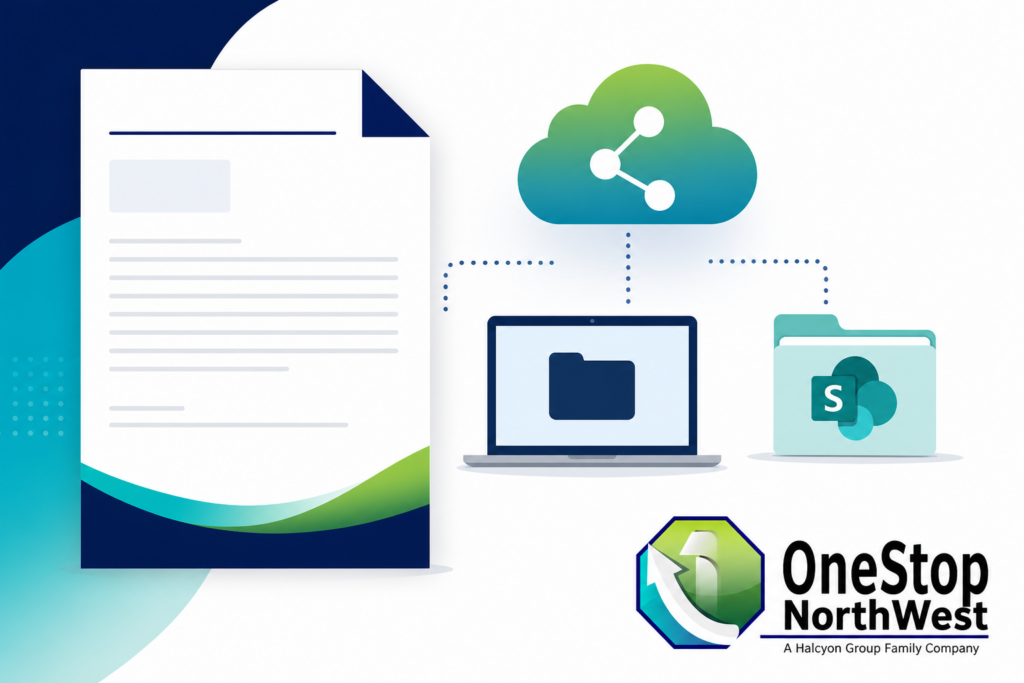
Why a Shared Letterhead Template Matters
If your team creates documents, proposals, or letters, brand consistency matters. When every employee builds their own letterhead from scratch, you end up with mismatched fonts, logos, and formatting across the company. Setting up one centralized Word letterhead template, stored on a shared network drive or SharePoint, solves this problem — every team member pulls from the same source, every time.
At OneStop Northwest, we help Mason County, Kitsap County, and Grays Harbor County businesses build cohesive brand systems — from logo design to custom apparel to the everyday documents your team sends out daily. A polished letterhead is one of the simplest, highest-impact branding wins a business can make, and this guide shows you exactly how to build one and roll it out organization-wide.
Step 1: Design Your Letterhead in Microsoft Word
- Open a blank Word document and set your margins (0.5″–1″ is standard for letterhead).
- Insert your logo in the header using Insert > Header — use a transparent PNG for a clean look on any background. (Need a logo redesigned or refreshed first? See our logo design pricing and packages.)
- Add your business name, address, phone number, website, and tagline in the header or footer.
- Use consistent brand fonts and colors that match your existing style guide. If you don’t have a documented style guide yet, our branding services can help formalize one.
- Leave the body area blank so staff can simply start typing their letter content.
Pro tip: Keep decorative elements light. Overly busy letterheads can look unprofessional when printed or attached to PDFs. If you’re unsure about layout, a quick consultation with a graphic design professional can save hours of trial and error.
Step 2: Save It as a Word Template (.dotx)
Once your design is finalized:
- Click File > Save As.
- Choose Word Template (*.dotx) from the file type dropdown.
- Name it clearly — e.g.,
CompanyName-Letterhead-Template.dotx.
Saving as a .dotx file (rather than .docx) ensures that when someone opens it, Word automatically creates a new document instead of editing the original template — protecting your master file from accidental changes.
Step 3: Share It on a Network Drive
If your organization uses a local or VPN-based shared network drive:
- Create a dedicated folder, such as
\\CompanyServer\Templates\Letterhead\. - Place the
.dotxfile there and set folder permissions to read-only for general staff (edit access limited to admins). - Share the network path with your team via internal documentation or onboarding materials.
- Staff can double-click the template from the shared drive to generate a new letter instantly.
This method works well for offices with an on-premises server or mapped network drives, but it requires users to be connected to the internal network (or VPN) to access it.
Step 4: Share It via SharePoint (Recommended for Remote Teams)
For hybrid or remote teams, SharePoint is the more reliable option since it’s cloud-based and accessible from anywhere.
- Navigate to your SharePoint site’s Document Library.
- Create a folder named Templates and upload your
.dotxfile. - Set folder permissions so most users have View Only access, preventing accidental edits to the master template.
- Optionally, add the Templates folder to Quick Access in Word or OneDrive for one-click access.
- Team members can open the file directly from SharePoint — Word automatically treats it as a template if it’s saved as
.dotx.
Bonus tip: You can also register the SharePoint folder as your organization’s default template location via Word Options > Save > Personal Templates location, pointing to a synced SharePoint/OneDrive folder. This makes the letterhead appear right in Word’s New Document gallery for every employee.
This is exactly the kind of internal systems work our web development team sets up for clients who also need document repositories, staff portals, or intranet-style pages — we can configure SharePoint alongside your other digital infrastructure so everything works together.
Step 5: Keep the Template Updated and Consistent
- Assign one person (or your web/design team) as the owner of the master template.
- Any branding updates — new logo, new address, new tagline — should only be made in the master file, never in personal copies.
- Communicate updates to staff whenever the template changes, and consider version-naming (e.g.,
v2_2026) so outdated copies aren’t mistaken for current ones. - Review your letterhead annually alongside your broader brand assets — logo, colors, apparel, signage — to make sure everything stays aligned. OneStop Northwest offers full brand identity packages that cover this kind of ongoing consistency across print, digital, and apparel.
Network Drive vs. SharePoint: Which Should You Use?
| Feature | Shared Network Drive | SharePoint |
|---|---|---|
| Remote access | Requires VPN | Works anywhere with login |
| Version control | Manual | Built-in version history |
| Permission management | Basic | Granular, role-based |
| Best for | On-site teams | Remote/hybrid teams |
For most modern businesses — especially those with remote employees or multiple office locations — SharePoint is the stronger long-term solution, offering better access control, version history, and easier maintenance than a traditional network share.
Frequently Asked Questions
Can I use a letterhead template in Word Online, not just desktop Word? Yes. Templates uploaded to SharePoint or OneDrive can be opened in Word Online, though some advanced formatting (like certain header/footer effects) displays best in the desktop app.
What if my team uses Google Workspace instead of Microsoft 365? The same centralization principle applies. See our companion guide on setting up letterhead templates in Google Workspace if your organization uses Docs and Drive instead of Word and SharePoint.
Can OneStop Northwest design our letterhead and logo together? Absolutely. We regularly bundle logo design, letterhead, and full brand identity packages so your business has one consistent look across every document, shirt, and sign.
Final Thoughts
A shared Microsoft Word letterhead template eliminates inconsistency, saves time, and reinforces your brand every time someone sends a letter, proposal, or internal memo. Whether you use a shared network drive or SharePoint, the key is centralizing the master file, locking down edit permissions, and making it easy for your team to find and use.
If your Mason County, Kitsap County, or Grays Harbor County business needs help setting up branded templates, document workflows, or a fully managed SharePoint environment, OneStop Northwest can design and deploy a system tailored to your business — from logo to letterhead to your entire website. Contact us to get started.